How to update your church website
Bean Creek MBC. Use Site Helper on your phone or computer.
Before you start
- Open this address: site.actionableops.com
- On a computer, click when this guide says "tap".
- The screen shows a practice copy of the website, the "preview". Your changes show on the real website only after step 5.
- The helper can change only words, photos, and events. It cannot change the colors or the design.
- Only one person can make changes at a time. If a different person makes changes now, try again later.
Change words and photos
1Log in
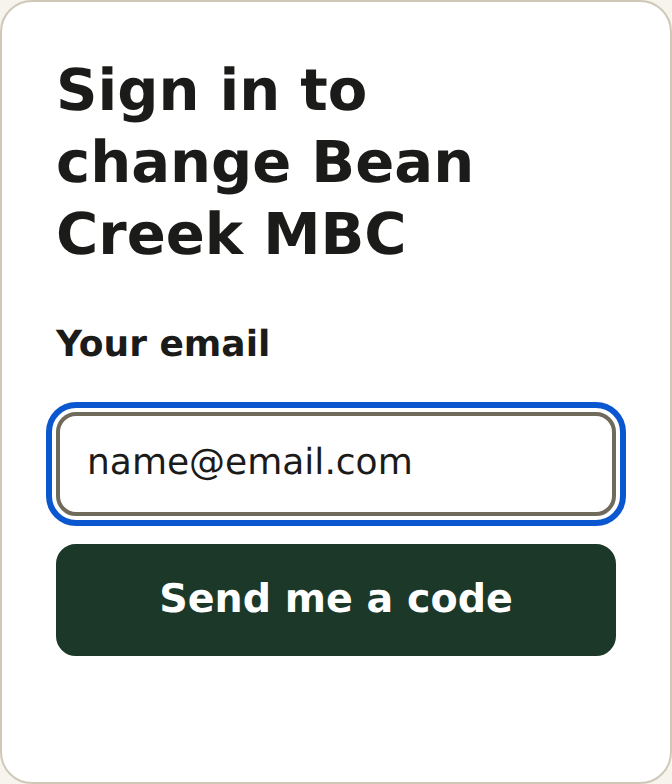
- Type your email in the box. Tap "Send me a code".
- Open your email. Find the 6-digit code. The code works for 10 minutes.
- Type the code. Tap "Sign in".
- If the code does not come, wait 1 minute. Then ask for a new code.
2Tap what you want to change
- Use the "Page" list to find the correct page.
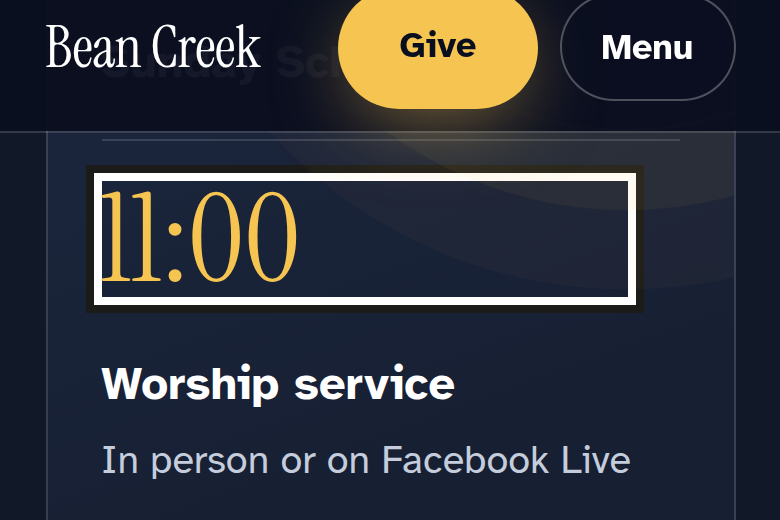
- Tap the words on the website that you want to change.
- A box shows around the words.
3Say what it should be
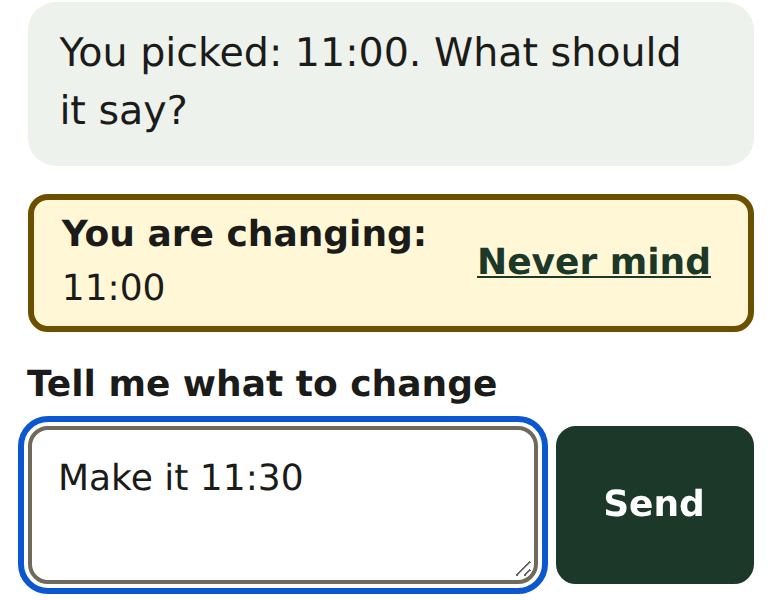
- The helper asks, "What should it say?"
- Type the new words in the box below "Tell me what to change". Tap "Send".
- Use your own words. For example: "Make it 11:30."
4Check it
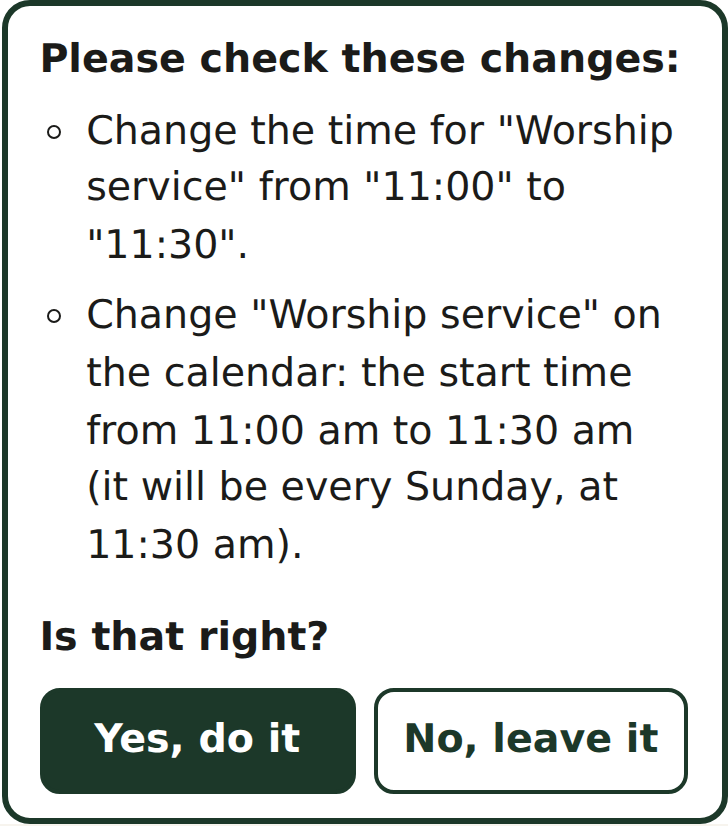
- The helper shows a list of the changes. Read each line.
- If all of the lines are correct, tap "Yes, do it".
- If a line is not correct, tap "No, leave it". Then tell the helper again with different words.
- Look at the preview. Make sure that the change is correct.
5Put it on the website
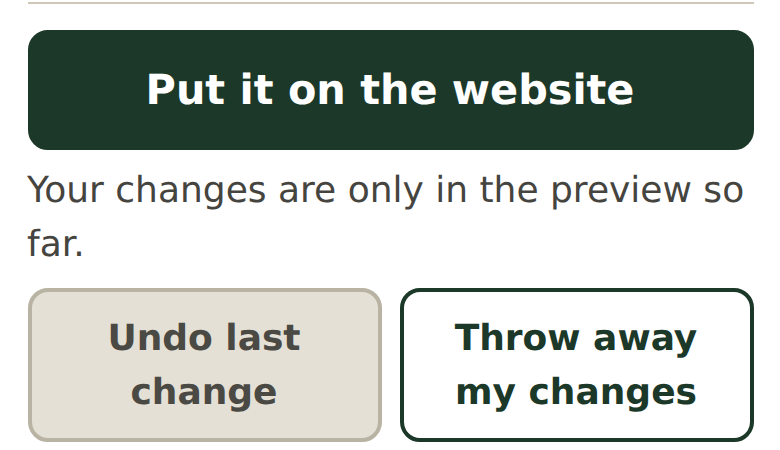
- Tap "Put it on the website".
- Wait for the message "Done. Your website is updated."
- Tap "See your website". If you do not see the change, wait 2 minutes. Then look again.
6Undo a mistake
- Tap "Undo last change".
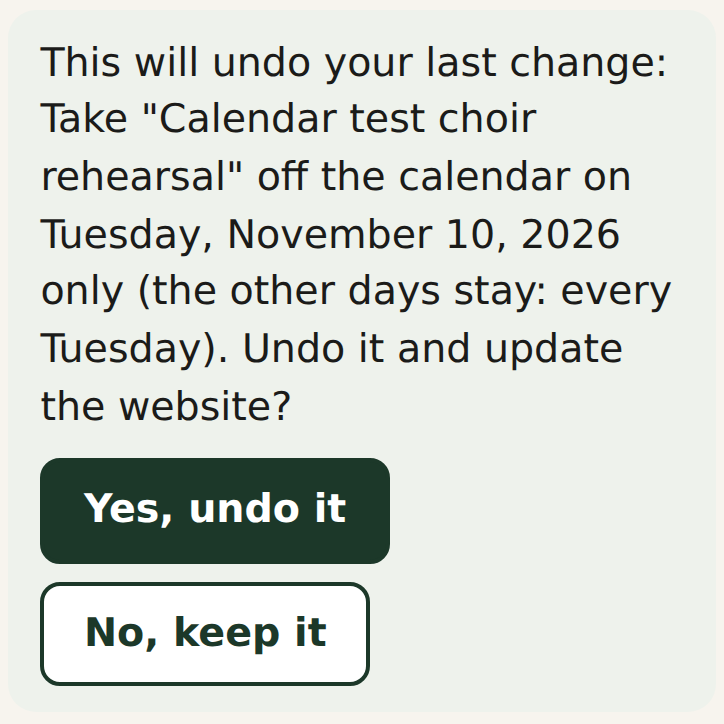
- The helper tells you which change it will undo. Read it. Tap "Yes, undo it".
- The helper removes that change from the website. To undo the change before it, do these steps again.
- Before step 5, you can tap "Throw away my changes". This removes all of the changes in the preview.
7Change a photo
- Tap the photo on the website that you want to change.
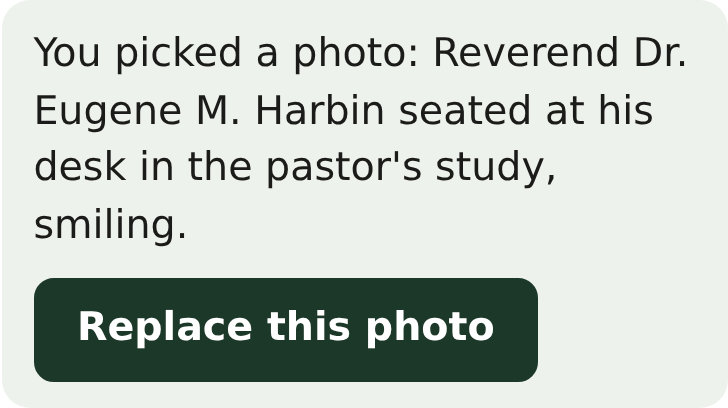
- Tap "Replace this photo". Choose a new photo from your phone or computer.
- The helper asks what is in the photo. Type a few words. This helps people who cannot see the photo.
- Do steps 4 and 5.
8Add a page
- Tap "Add a page".
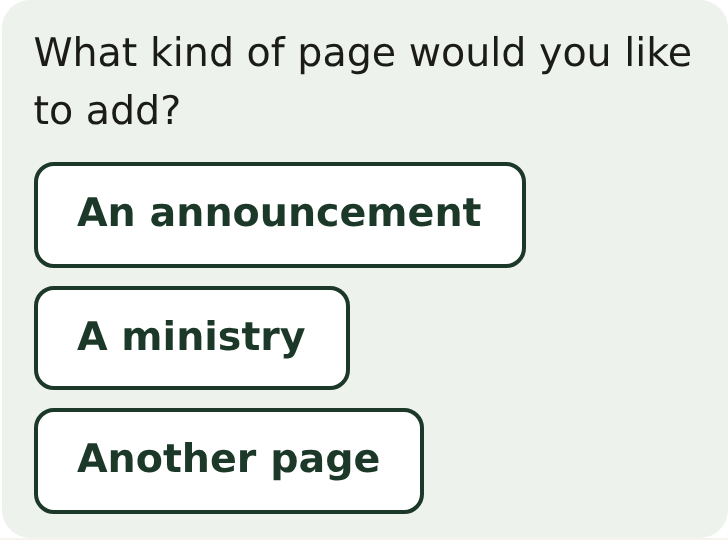
- Choose the type of page: an announcement, a ministry, or a different page. For an event, see step 10.
- Answer each question. Tap "Send" after each answer.
- Do steps 4 and 5.
The calendar
9Open the calendar
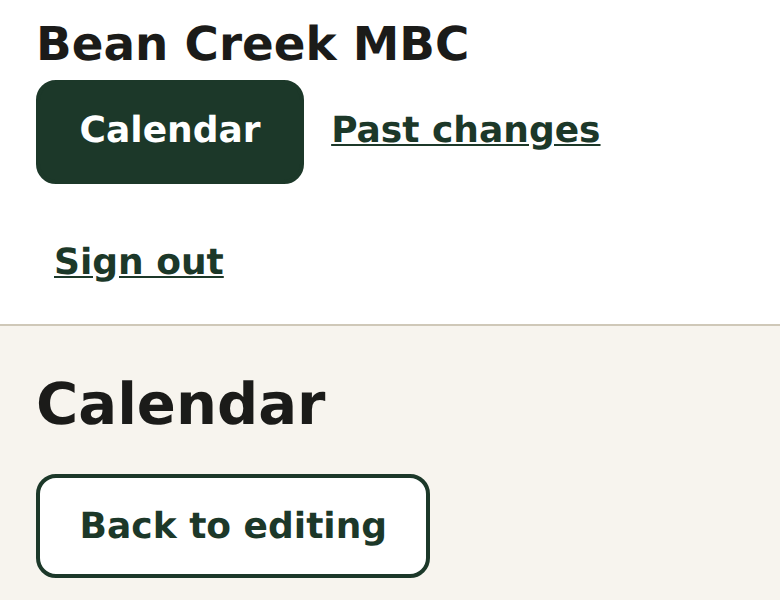
- Tap "Calendar" at the top of the screen.
- The list "Coming up" shows the events that come next.
- To go back to the website, tap "Back to editing".
10Add an event
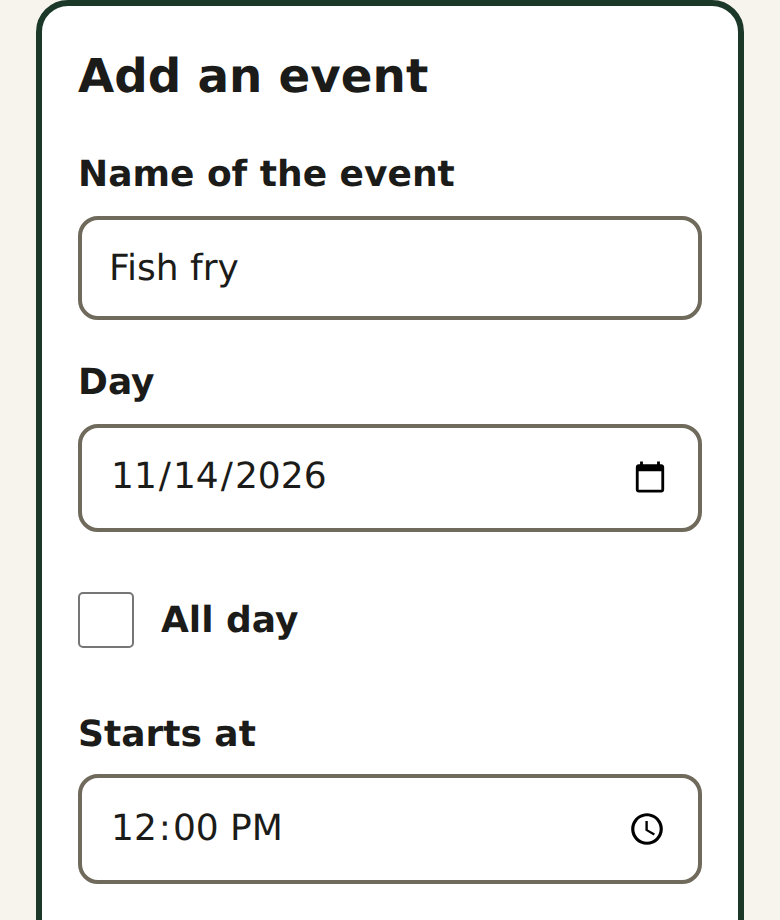
- Tap "Add an event". Type the name of the event. Choose the day.
- Choose the time that it starts, and the time that it ends if you know it. For a full day, tap "All day".
- Type where it is. If it is at the church, leave this box empty.
- You can add details and a photo, or skip them.
- Tap "Check it". Then do steps 4 and 5.
11Make it repeat
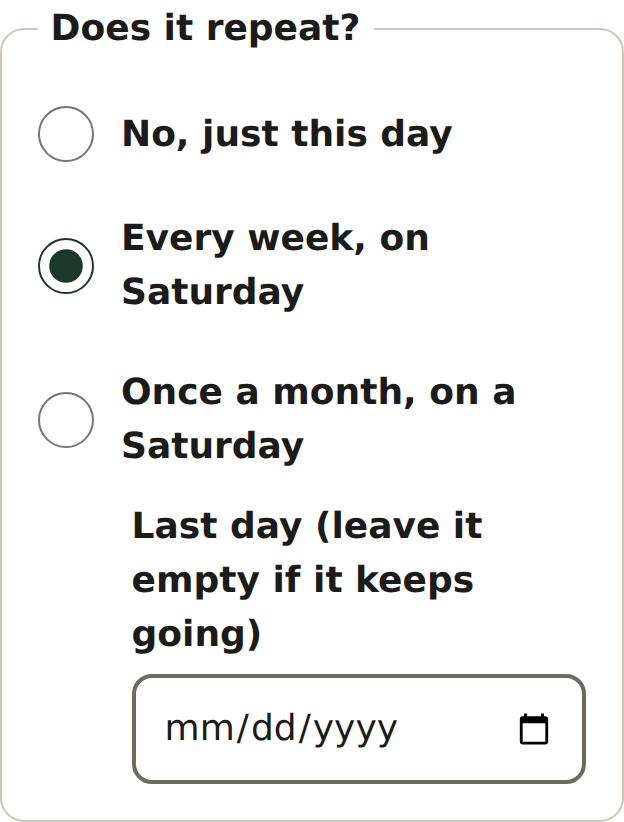
- Before you tap "Check it", find "Does it repeat?".
- Tap "Every week" or "Once a month". For once a month, choose which one.
- If the event stops, choose the last day. If not, leave that box empty.
- Read the sentence below the form. Make sure that it is correct.
12Change an event
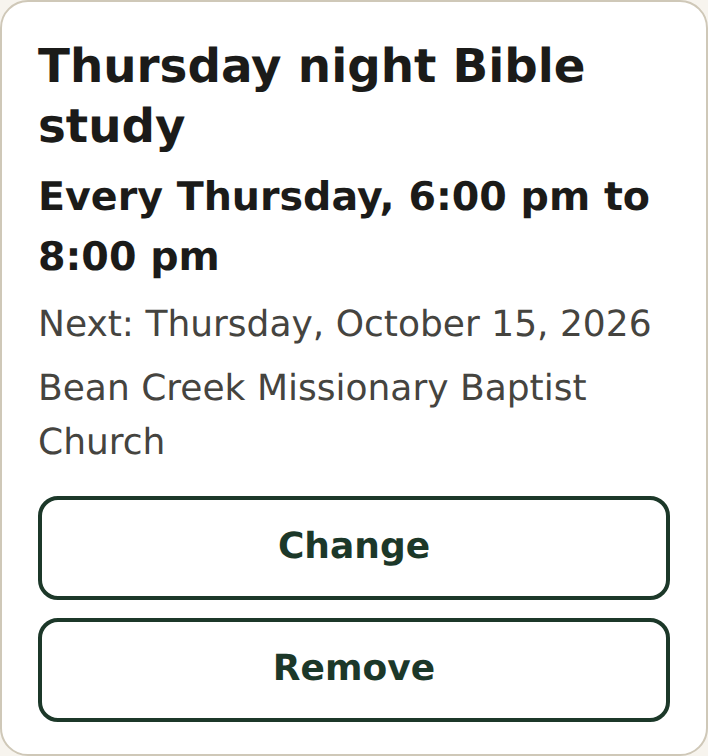
- Find the event in the list "Coming up". Tap "Change".
- Change the name, the day, the time, or the place.
- Tap "Check it". Then do steps 4 and 5.
13Remove one date or every date
- Find the event in the list "Coming up". Tap "Remove".
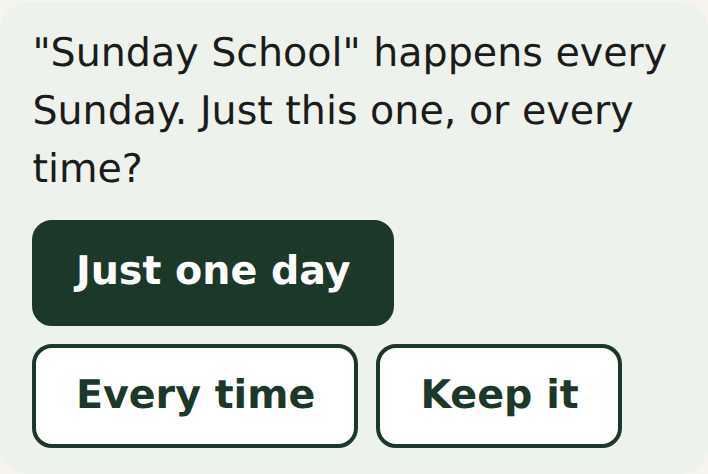
- If the event repeats, the helper asks, "Just this one, or every time?"
- To remove one date, tap "Just one day". Then tap the date.
- To remove every date, tap "Every time".
- Do steps 4 and 5.
14Share an event with someone
- Open your real website. Tap "Menu", then "Calendar", then the event.
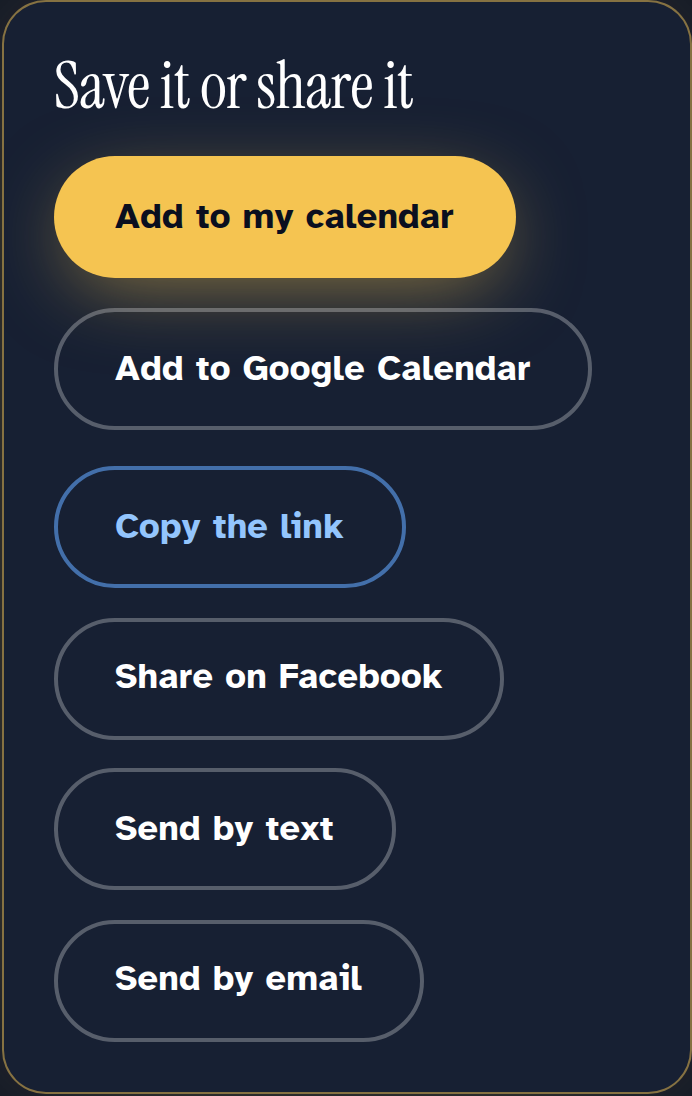
- Find "Save it or share it".
- On a phone, tap "Share". Choose how to send it.
- On a computer, tap "Copy the link". Paste it into an email.
- You can also tap "Send by text" or "Send by email".
Who to call if something looks wrong: Dale
Phone: [Dale's phone]
- The code does not come. First, look in your junk mail.
- The website does not show your change after 2 minutes.
- A page or an event that you removed still shows on the website.
- The helper says, "The helper is resting until next month."
- "Undo last change" does not correct the website.